Gaming and Streaming at the Same Time: Fix OBS Lag and Find the Real Bottleneck
Running a game while recording or streaming asks your PC to do two demanding jobs at once. When something falls behind, you might see choppy gameplay, a stream full of skipped frames, or both. The good news is that OBS tells you which part is struggling. This guide shows how to read it and what to change.
What Your PC Does While You Stream
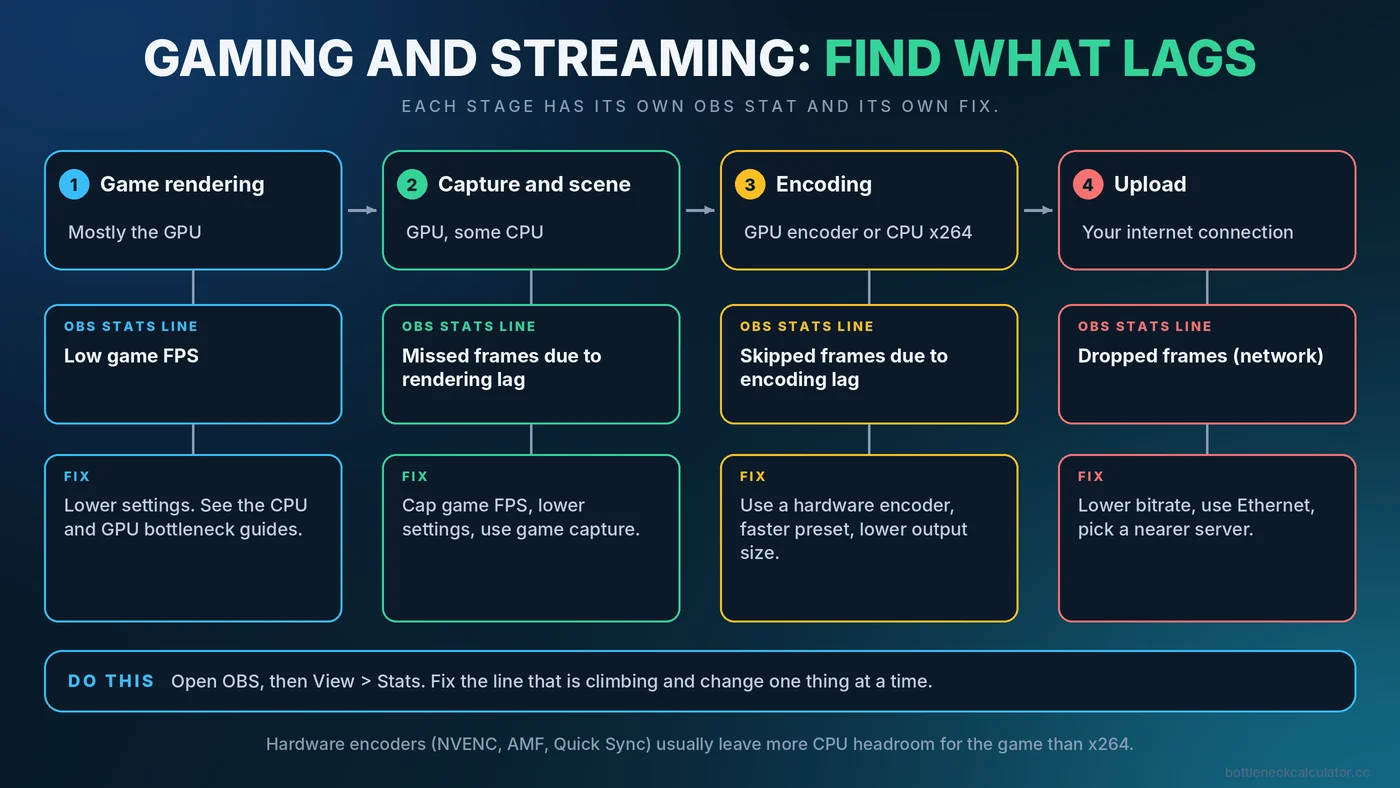
Streaming adds several tasks on top of the game itself, and each one leans on a different part of the system.
- Rendering the game mostly uses the graphics card.
- Capturing and compositing the picture, and adding overlays or webcam, uses the GPU and some CPU.
- Encoding the video into a stream uses either a dedicated encoder on the GPU or the CPU, depending on your settings.
- Uploading the stream depends on your internet connection, not your PC hardware.
- Background apps such as chat, browsers and alerts also use CPU and memory.
Because the load is split this way, the solution depends on which task falls behind. Guessing usually wastes time.
Read the OBS Stats Before Changing Anything
In OBS Studio, open the Stats dock from the View menu. Three lines tell you most of what you need.
| OBS stat | What it means | Usually points to |
|---|---|---|
| Skipped frames due to encoding lag | The encoder cannot keep up | Encoder too heavy for the CPU or GPU |
| Missed frames due to rendering lag | OBS cannot render its scene in time | GPU overloaded by the game and OBS together |
| Dropped frames (network) | Frames could not be sent | Upload bandwidth, connection stability or bitrate too high |
A clean session shows zero or near-zero values in all three. Each number maps to a different fix, so identify which one is climbing first.
Choosing an Encoder
| Encoder type | Where it runs | Strengths | Trade-offs |
|---|---|---|---|
| Hardware (NVIDIA NVENC, AMD AMF, Intel Quick Sync) | Dedicated block on the GPU or CPU graphics | Low impact on game performance, good for single-PC streaming | Quality depends on generation and settings |
| Software (x264) | CPU cores | Flexible quality presets | Heavy CPU load that can reduce game FPS |
Most single-PC streamers do best with a hardware encoder, because it leaves CPU headroom for the game. Newer graphics cards also add support for more efficient formats such as AV1, though platform support for those varies, so check what your streaming service accepts.
Fixing Encoding Lag
- Switch to a hardware encoder if you are using x264 on a CPU that is also running the game.
- Use a faster encoder preset. Higher quality presets cost more processing time.
- Lower the output resolution or frame rate. Streaming at 1080p and 60 FPS from a 1440p game screen is common, and 720p can be easier to encode.
- Close CPU-heavy background apps. Browsers with many tabs are a frequent cause.
- Check CPU usage. If it is pinned during play, see how to fix 100% CPU usage.
Fixing Rendering Lag
This is the most common problem for single-PC streamers and it means the GPU is overloaded. The game and OBS compete for the same graphics card.
- Cap the game's frame rate a little below what your GPU can reach. Leaving headroom lets OBS render its frames on time. A cap also lowers GPU usage by design, which is explained in our FPS cap guide.
- Lower in-game graphics settings or resolution. This frees GPU capacity. Our GPU bottleneck guide shows which settings cost the most.
- Use game capture instead of display capture where possible. Capturing only the game window can reduce overhead in some setups.
- Reduce the number of sources and filters in your OBS scene, such as many browser sources and heavy effects.
- Keep your graphics driver and OBS up to date.
Fixing Dropped Frames
Dropped frames are a network problem, not a PC power problem. Lowering game settings will not fix them.
- Lower the stream bitrate. Keep it comfortably below your measured upload speed, leaving a good margin, and within the limit of your streaming platform.
- Use a wired Ethernet connection. Wi-Fi often introduces unstable delivery.
- Pick a nearer ingest server in your streaming service's settings.
- Check for other devices using your connection while you stream.
How Much RAM and Storage Do You Need?
A game, OBS, a browser and chat can use a lot of memory together. If memory is running short, the system slows down in the middle of the stream. For many streamers, 32GB gives comfortable room, as discussed in our 16GB vs 32GB guide. If you record locally, write recordings to a fast SSD, ideally a different one from your game drive, so recording does not compete with game loading. See our storage bottleneck guide for more.
When to Consider Upgrading or a Second PC
- If rendering lag persists even after lowering settings, a stronger graphics card may be the most effective upgrade.
- If you must use CPU encoding for quality reasons, more CPU cores help, because the game and encoder can each use their own.
- If you stream demanding games at high quality, a dedicated second PC for capture and encoding removes the competition entirely, but it is a costly path.
Before you spend, check which part is actually limiting you with our guide on how to check a PC bottleneck, and plan upgrades using the upgrade checklist.
A Simple Troubleshooting Order
- Open OBS Stats and play for several minutes.
- Note which of the three lines rises.
- Apply the matching fix from the sections above.
- Change one thing at a time and test again.
- Only consider hardware upgrades after settings and network fixes.
Conclusion
Streaming problems are rarely mysterious once you read the OBS stats. Encoding lag points to the encoder, rendering lag points to the GPU, and dropped frames point to the network. Fix the part that is falling behind, and keep headroom for the game. To see how balanced your CPU and GPU are for gaming and streaming workloads, try the free Bottleneck Calculator.
Frequently Asked Questions
Why does my game lag when I stream?
Streaming adds GPU, CPU and sometimes memory load on top of the game. If any of these hits its limit, the game or the stream falls behind. OBS Stats shows which task is struggling.
What causes "encoding overloaded" in OBS?
The encoder cannot keep up with the video. Switching to a hardware encoder, using a faster preset, lowering the output resolution or frame rate, and closing CPU-heavy apps usually helps.
Is NVENC better than x264 for streaming?
For single-PC streaming, hardware encoders like NVENC usually leave more resources for the game. x264 offers flexible quality but uses CPU cores that the game also needs.
What does "missed frames due to rendering lag" mean?
OBS could not render its scene in time, usually because the GPU is overloaded by the game. Capping the game's FPS and lowering graphics settings often fixes it.
Do I need a second PC to stream?
Not always. Many people stream well from one PC using a hardware encoder and sensible settings. A second PC makes sense for demanding games at high stream quality.